
SIM卡數碼化 無卡上網時代
甚麼是eSIM ?
eSIM與傳統SIM卡不一樣,傳統SIM卡為實體卡,需把其置入手機方可啟用網絡功能,而eSIM則只需掃描我們提供的QR Code,毋需實體卡即可連接網絡。
為何選用eSIM ?

一個裝置,可管理多張eSIM

毋需指定插槽

嵌入裝置後,毋需擔心遺失智能卡
eSIM 相容裝置及步驟
目前Android及Apple不少手機、平板電腦及其他可穿戴装置均支援eSIM,以下為 iPhone 版 及 Android 手機版的安装教學:
eSIM 安裝教學 iPhone

1. 點選“設定”以透過流動數據或Wi-Fi設定eSIM
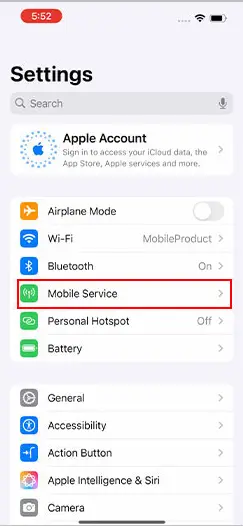
2. 點選“流動網絡”
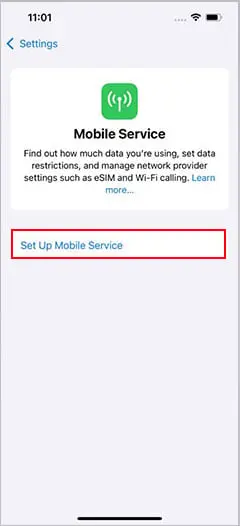
3. 點選“設定流動網絡”
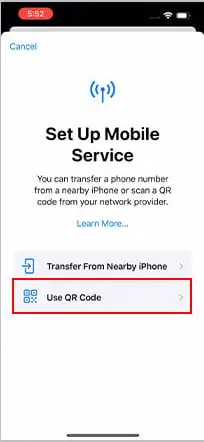
4. 點選“使用二維碼”
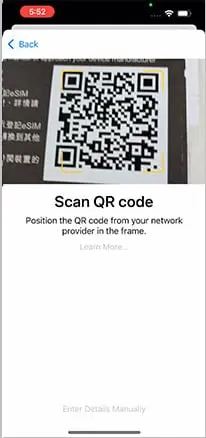
5. 將攝像鏡頭掃瞄電訊商提供的QR code
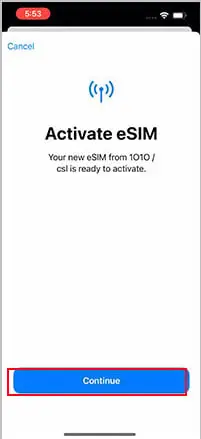
6. 點選“繼續”
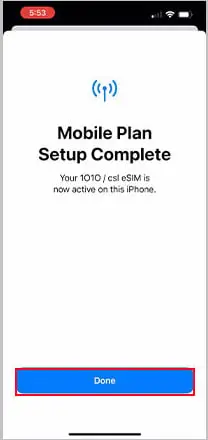
7. 點選“完成”

1.
點選“設定”以透過流動數據或Wi-Fi設定eSIM
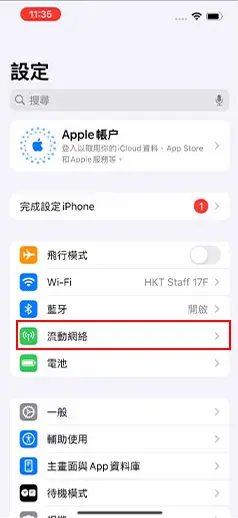
2.
點選“流動網絡”

3.
點選“設定流動網絡”

4.
點選“使用二維碼”
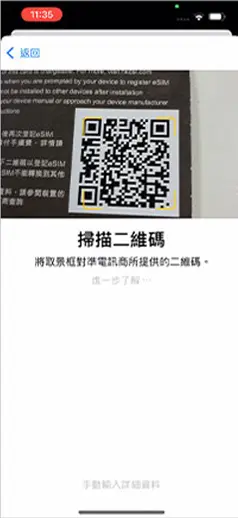
5.
將攝像鏡頭掃瞄電訊商提供的QR
code

6.
點選“繼續”
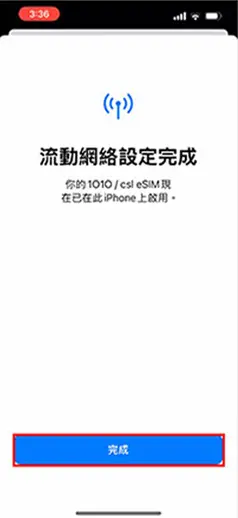
7. 點選“完成”
1.
点选“设定”以透过流动数据或Wi-Fi设定eSIM
2.
点选“流动网络”
3.
点选“设定流动网络”
4.
点选“使用二维码”
5.
将摄像镜头扫瞄电讯商提供的QR code
6.
点选“继续”
7.
点选“完成”
eSIM安裝教學 Android
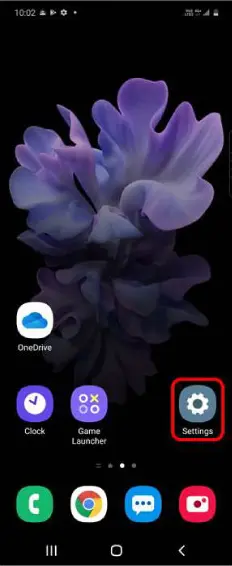
1. Tap "Settings"
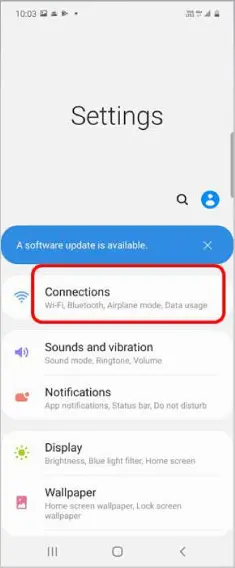
2. Tap "Connections"
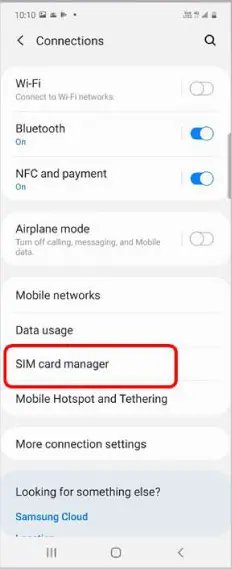
3. Tap "SIM card manager"
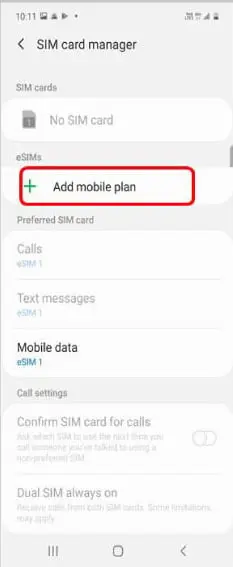
4. Tap "Add mobile plan"
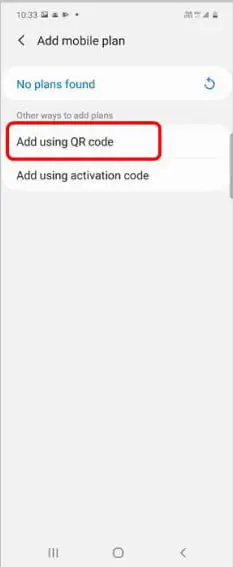
5. Tap "Add using QR code"/"Add using activation code"
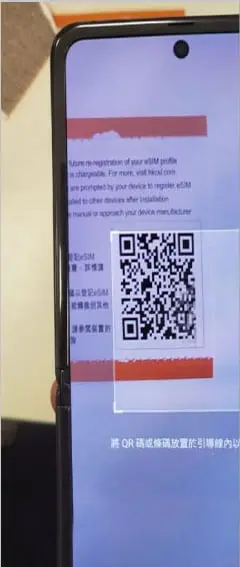
6. Scan the QR code from eSIM Voucher to register
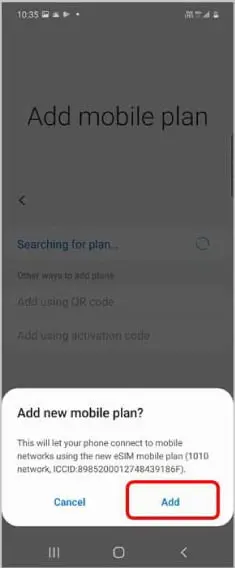
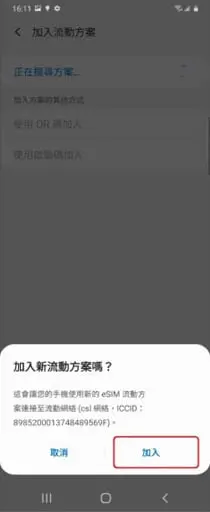
7. Tap "Add" for new mobile plan
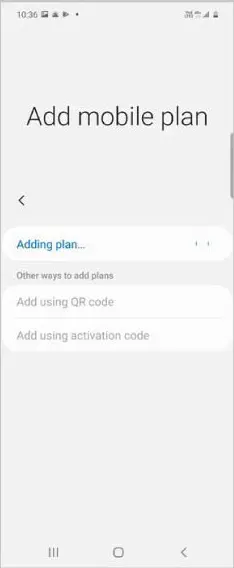
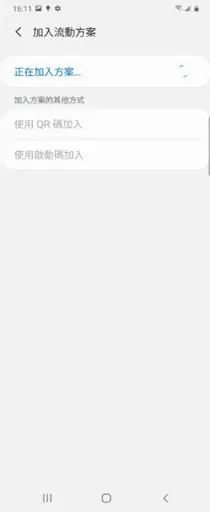
8. "Adding plan..." is shown
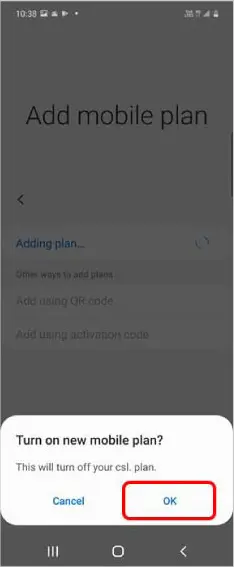
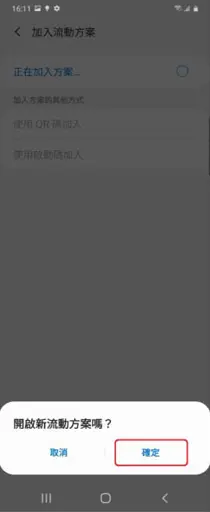
9. Tap "OK" for activate new mobile plan
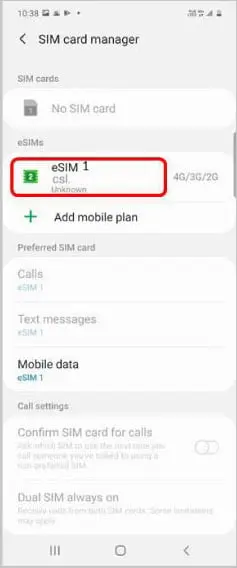
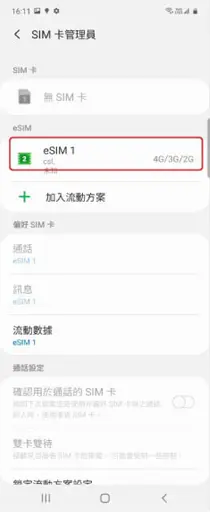
10. After activation, you will see the new eSIM loaded and used
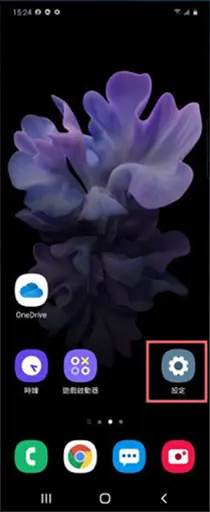
1.
點選“設定”
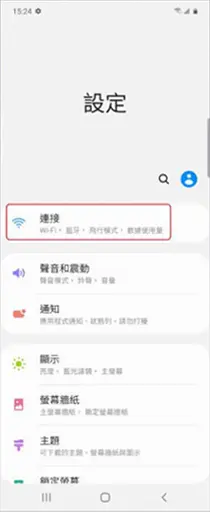
2.
點選“連接”
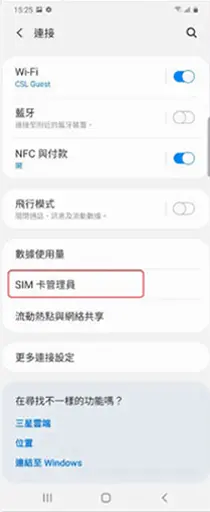
3.
點選“SIM卡管理員”
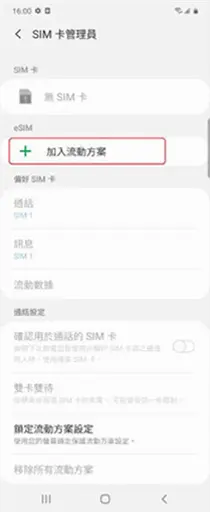
4.
點選“加入流動方案”
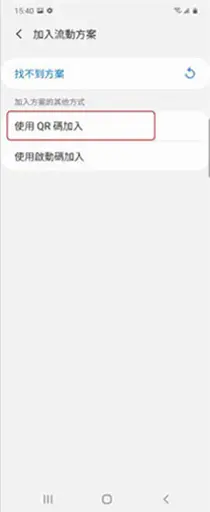
5.
點選“使用QR碼加入”
或“使用啟動碼加入”

6.
使用裝置掃描在eSIM
Voucher 上的QR
code
7.
點選“加入”以新增流動方案
8.
畫面顯示“正在加入方案………”
9.
點選“確定”以啟動新流動方案
10.
完成啟動後,你會看到新
eSIM 載入並使用網絡中
1.
点选“设定”
2.
点选“连接”
3.
点选“SIM卡管理员”
4.
点选“加入流动方案”
5.
点选“使用QR码加入” 或“使用启动码加入”
6.
使用装置扫描在eSIM Voucher 上的QR code
7.
点选“加入”以新增流动方案
8.
画面显示“正在加入方案………”
9.
点选“确定”以启动新流动方案
10.
完成启动后,你会看到新eSIM 载入并使用网络中
Frequently Asked Questions
A1: It is a virtual SIM that allows you to activate a service provider’s mobile plan without using a physical SIM card.
A2: One eSIM number can work with only one eSIM device.
A3: Replacement arrangements are the same as if using a physical SIM.
A4: You can follow the steps to test whether your device is eSIM-compatible:
(I) Open your device’s phone app keypad, then enter USSD short code *#06#
OR
(II) Find details via your device settings:
iOS: Go to "Settings", click "General" > "About"
Android (Samsung as reference): Go to "Settings" and tap "About phone"
EID (Embedded Identity Document) barcode or number displays if your device supports eSIM.
*If your device does not support receiving SMS, eSIM service is temporarily unavailable.
A5: No. Once an eSIM voucher’s QR code is downloaded and installed, it will be invalidated immediately, regardless of device concerned.
FAQ 常見問題
A1: eSIM是一種虛擬SIM,可讓您從流動網絡商啟動服務計劃,而無需使用實體SIM卡。
A2: 一個eSim 號碼只可以支援最多1個 eSIM裝置的連接。
A3: 跟實體 SIM 的更換安排一樣。
A4: 你可以嘗試使用以下方法測試裝置是否支援eSIM:
(I) 打開裝置內的電話撥號鍵盤,然後輸入短碼 *#06#
或
(II) 於裝置設定內查看有關資訊:
iOS:進入「設定」,點選「一般」>「關於本機」
Android (以Samsung為例子):前往「設定」,點選「關於手機」
如有顯示 EID(eSIM 識別碼)條碼或編號,代表你的裝置支援eSIM。
*如你的流動裝置不支援接收SMS,eSIM服務暫未能提供服務。
A5: 不可以,eSIM Voucher之QR code一經下載及成功安裝,會馬上作廢, 不無論同一手機裝置或其他手機裝置,重覆掃瞄均無法使用。
Remarks:
Each eSIM service is for one device only. Please do not change or delete eSIM after downloading and binding. If the eSIM is unable to be used due to said scenario, replacement and refunds will not be provided.
Please make sure your device supports eSIM before purchasing. If your device does not support receiving SMS, this eSIM service is temporarily unavailable.
Connect to Wi-Fi and use an eSIM-enabled device, according to the eSIM settings on your device and scan the eSIM QR code on the e-redemption letter. (Activation code entry is not supported.)
After adding the eSIM, you will receive the SMS for Real-Name-Registration. You can click the link in the SMS to complete the Real-Name-Registration and activate the service.
注意事項:
每一張eSIM服務只供一部裝置使用,下載綁定後請勿隨意更換或刪除,如造成無法使用eSIM,恕無法更換及退款。
請確保你的流動裝置支援eSIM,如你的流動裝置不支援接收SMS,本eSIM服務暫未能服務。
連接wifi及使用支援eSIM的流動裝置及根據流動裝置的eSIM設置掃瞄eSIM QR code。(不支援輸入啟動碼。)
加入eSIM後,流動裝置會接收有關實名登記短訊,可按短訊連結完成實名登記以啟動服務。
注意事项:
每一张eSIM服务只供一部装置使用,下载绑定后请勿随意更换或删除,如造成无法使用eSIM,恕无法更换及退款。
请确保你的流动装置支援eSIM,如你的流动装置不支援接收SMS,本eSIM服务暂未能服务。
连接wifi及使用支援eSIM的流动装置及根据流动装置的eSIM设置扫瞄eSIM QR code。 (不支援输入启动码。)
加入eSIM后,流动装置会接收有关实名登记短讯,可按短讯连结完成实名登记以启动服务。